First, Flow use source and target to adapt objects from source to target.
Those Source and target can be both curves or both surfaces.
Documentation for Flow is here
http://moi3d.com/4.0/docs/moi_command_reference8.htm#flow
Documentation for Iso
http://moi3d.com/4.0/docs/moi_command_reference7.htm#isocurve
You have to turn your drop to avoid problems with cutting an edge next.
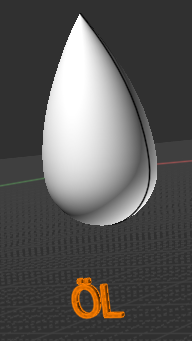
Use ISO curve -----> Construct/Curve/ISO
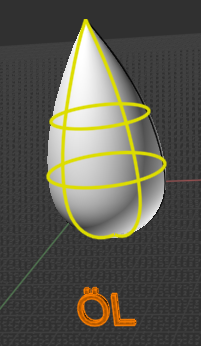
When you have your curves, you can select drop + Curves and Trim it -----> Edit/Trim
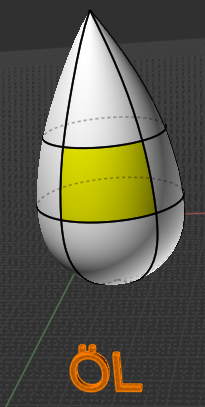
Now you have a surface which could be a target surface.
Construct a rectangle on your Text which could be a source surface.
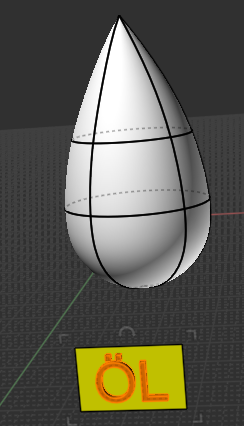
You can now use the Flow function -----> Transform/DEform/Flow
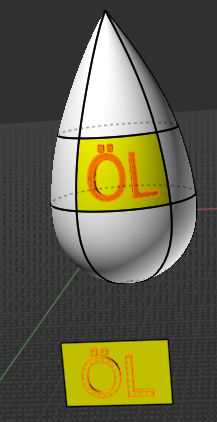
If you want delete the cutting of your drop, select text on drop Copy it with Ctrl/C
press Undo many time to return on the situation you want then Paste iwith Ctrl/V |

