Show messages:
1-8
9-25
From: Frenchy Pilou (PILOU)
you must see at the free Photopea online! ;) for me the best for this price! ;) And more easy than Inkscape!
Vectorize Bitmap
tested PDF and SVG from Moi...no problem :)
https://www.photopea.com/learn/ https://www.photopea.com/tuts/
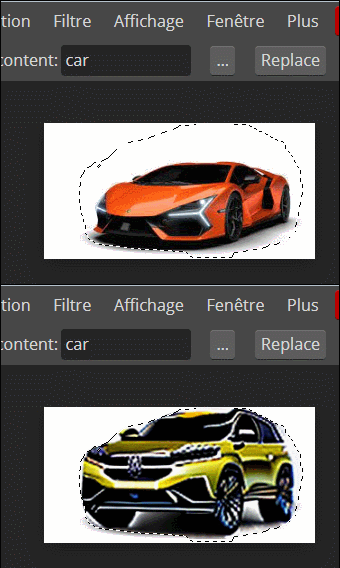
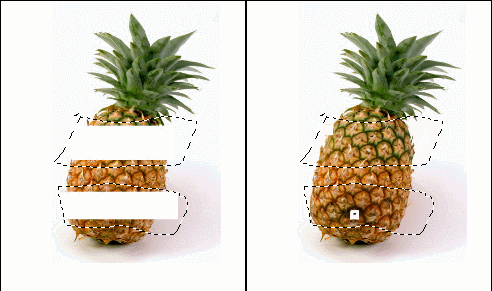
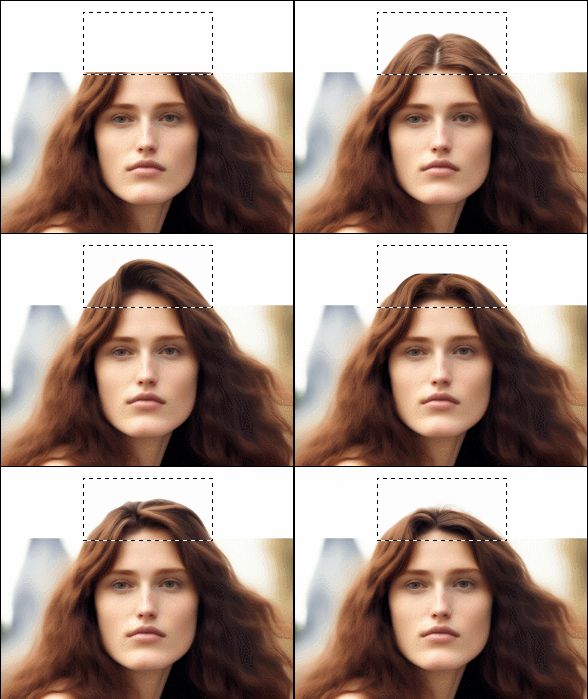
it has also inside the magic function of AI image! ;) InPainting, OutPainting !
https://www.photopea.com

From: Frenchy Pilou (PILOU)
Speed test with Photopea...not sure you can import colors ... here in SVG ...works also without color in PDF !
Same result with Affinity (only SVG) no color PDF seems not works...(surely a bitMap )
https://moiscript.weebly.com/uploads/3/9/3/8/3938813/testaff.pdf (affinity file pdf who don't work in Moi)

From: Frenchy Pilou (PILOU)
We can import curves drawn from Photopea ... just Fill them first...

"
From: bemfarmer
Affinity Designer V2.1, does NOT do autotrace conversion of pixels into vectors. It can be done manually, or by some other programs.
https://www.youtube.com/watch?v=480dGcU6ce4
https://forum.affinity.serif.com/index.php?/topic/130625-png-to-vector/
Auto Trace in other programs takes many seconds to do.
Vector Magic ($), Inkscape, and SVG trace can do auto trace of PNG pixels.
- Brian
From: Frenchy Pilou (PILOU)
Vectorization of a bit Map : free Photopea online can do it also in a second! sea above! ;)
From: bemfarmer
After a lot of study and practice, here is an outline of one procedure to prepare a PNG for autotrace to SVG that may be imported into MoI.
Documenting such procedures takes some time, and there may be a few minor steps omitted.
Older versions of Affnity may have minor menu differences. So watching old YouTube videos can be trying. Also there is a lot of terminology, and one word can have different meanings in different contexts.
1. Open Affinity Designer and load PNG file. The image shows up with White background pixels, and 6 color curves and graph axi and graph labels. (Only one color curve, plus graph axi and labels wil result in the final modified and Exported PNG, to assist and simplify future vectorization.) ("Behind" all of the pixel colors, is a checkerboad of the pixel locations, which will begin showing up as colors are deleted, or copied to new layer(s).)
2. Select "Pixel Persona".
- File > Persona > Pixel
- Or else click Pixel Persona icon, upper left corner of screen.
On the right hand side of the screen, below the color wheel, one Layer is shown, which initially has ALL of the Pixel information. Orange curve Selection and copy/paste will be used to create a new OrangeLayer. Pixel cleanup and copy/paste (or cut/paste) will be used to create a new GraphLabel layer.
The original Layer will be deleted, and the two new Layers exported to processed PNG.
The two Layers will NOT be exported to SVG, because such a SVG would be a pseudoSVG file, containing embedded pixel data, NOT vector data of a true SVG.
3. The original Layer is named "Background". Any layer may be renamed. Optionally, Duplicate the original Layer, as a backup. (This backup has lock icon)).
- On RHS of screen, right click the Layer and click "Duplicate."
- Select the non-locked Layer, by clicking on it.
(For practice learning, it would be simpler not to bother with the backup layer.)
4. Select the Orange curve, and copy it to a new Orange Layer.
- Make sure the sole original layer on Right, is active/selected (highlighted), by clicking on it, if necessary.
- Select > Select Sampled Color.
All colors get selected initially. A Tolerance popup box will appear on the screen. 15% seems to be a good value. Tolerance is the value of the color about to be picked, to include slight color variations.
- Adjust the Tolerance value to the desired value. If the Tolerance is too high, other colors may be added to the selection.
- Zoom way in, and click in the middle of the Orange curve band. The orange band is seleced
- Click "apply" in the Tolerance box.
- Right click on (layer or pixel screen) and select Cut or Copy.
- Right click on (layer or pixel screen) and select Paste.
ESC
A new Layer rectangle appears directly above the active layer, and contains the color band(s) selected.
Note that there is a "Toggle Visibility" button on each layer rectangle.
5. It is desirable to copy the Black axi and labels to their own Layer. To do this, it is necessary to edit out the Black curve ribbon, using Pixel Persona Tools, primarily the Lasso select tool, which works very well, with a small learning curve. (A little different that the MoI select method.) Then the steps of step 4 can be repeated with selection of Black axi/label, Tolerance, and Cut(Copy)/ Paste.
6. Clean up the two new layers, if there are a few undesirable pixel shades, with Lasso select.
7. Delete original Layer, and Duplicate, and Export the two new Layers to a new PNG. <<<END OF Affinity Design processing>>>
8. Perform AutoTrace with another program, with the new PNG as input image file.
Download the output to SVG file.
Autotrace programs:
SVG Trace, (Free, Online, works well.):
https://svgtrace.com/
Adobe Express, png-to-svg, (Free, Online, works well.):
https://adobe.com/express/feature/image/convert/png-to-svg
Vector Magic, ($, Online or Desktop):
There are several others.
Import the (true vector) SVG into MoI, for further processing.
- Brian
I still have to try out PhotoPea :-)
From: bemfarmer
Due to overlapping curves, and related loss of some color pixels, maybe it is better to import a selected PNG to MoI image and trace in MoI???
- Brian
From: bemfarmer
Affinity Design can ALSO Trace/Draw Vectors, in Designer Persona, on or near Pixel objects of a PNG image, so more study is needed.
Then export to (true vector) SVG...and skip the 3rd party AutoTrace program.
Then import the new SVG into MoI...
https://www.youtube.com/watch?v=7N-ePdWaBns
The video goes so fast, and so low volume, that it is hard to follow...
AD vector tools:
https://www.youtube.com/watch?v=hsbtJxqBi_I
- Brian
So, using Affinity Designer, I am shifting focus to reproducing 2D curves in PNG pixel image, with Vectors, using the numerous AD vector Tools.
Include scaling/alignment references. Save as AD (true vector) SVG, to be imported into MoI. This bypasses using Image command in MoI.
From: bemfarmer
Attached is the Top view of a 3D curve, which is Red. The 2D mirror half is not shown.
The Blue curves are the Trimmed, Blended (G1 and G2) and Joined profile traces of a band of blue pixels.
Some of the Blends had to be slider adjusted. Rebuild was done at .001.
The Red curve is the Loft of the two Blue curves, with center point selection of central IsoLine.
The Loft had to be in #Points mode, with about 100 points, to look good.
The Red curve is the Goal.
Loft and IsoLine was used instead of cMorph.
cMorph produced a central curve, which was very off-center. (The cMorph script might be improved by adding #Points mode ???)
Initial PNG was processed in Affinity Design, with two reference vector lines for X and Y. Saved to number2.PNG
Affinity Designer does not have autotrace of a pixel band. Manual tracing can be done with enough experience, but it is much nicer to work in MoI.
Online SVGTrace was used to vectorize blue pixel band of number2.PNG to vector SVG file.
(Inkscape Trace Bitmap command is derived from PoTrace.)
Import of SVG into MoI was huge, but Orient Line/Line was used to adjust size.
Now on to XZ and YZ views...
- Brian
I need to delete some old attachments.
Also Harddrive is too full...
Attachments:
 XY_Center_BLUE_10.zip
From: MO (MO_TE)
Hi Brian
I tested "svgtrace.com", It traces bitmap images fairly well, The problem is, it generates "outlines" of the png curves.
For your case you need "center lines" of png curves .
Inkscape's "Centerline tracing(autotrace)" option works nicely for this case.
I will explain my procedure on extracting one of the curves of your png file.
(I'm using krita to separate overlapping curves, but it can be done with other pixel apps too, Or skipped if no overlapping exists)
<Krita>
Increase color saturation with "HSV Adjustment" filter.(CTRL+U)
Use "similar color selection" tool to select curve's color (low fuzziness).
Copy-paste selection. It will generate a new layer with selected pixels.
Hide all other layers except the new one.
Export new layer as "separated_curve.png".
<Inkscape>
Import the "separated_curve.png". Open "Trace Bitmap" panel (Path ==> Trace Bitmap)
Trace Bitmap as shown. save as PDF.

<Moi>
Import pdf. cleanup. rebuild curve (#Points).
As you mentioned, manual tracing inside moi can be much accurate and maybe faster.
Here is a quick, inaccurate result.

Attachments:
PNG_Curves.zip
Image Attachments:
PNG_To_Curve.png
PNG_To_Curve_Res.png
From: bemfarmer
Hi MO,
Thank you very much.
Yes, the outline curves seem to cause some curve, and curvature (G1,G2), inaccuracy of some sort.
I was unaware that Inkscape did centerlines, but did briefly try Inkscape outlines. I think
Inkscape failed with an unfuzzy band (?).
Will try this "Krita".
For my particular PNG's, I think that in the overlap regions, some pixels only have one color (plus that color's fuzziness, so recovering say the blue band, will result in its tapering down to zero. So maybe some blending in MoI will be needed later.
- Brian
From: Frenchy Pilou (PILOU)
In case of :)

From: bemfarmer
A smart use of LineWeb!
- Brian
From: MO (MO_TE)
- - So maybe some blending in MoI will be needed later.
Yes, that's what I did to regenerate lost parts.
I also duplicated some overlapped regions. (Blue and Green curves)
From: bemfarmer
EDIT:
There is OLD, obsolete information on the internet, regarding Centerline Autotrace, in old Inkscape versions (~.9x).
Inkscape version 1.2 and 1.3 have the tool hiding in the Trace Bitmap selection.
See 2nd post following.
So this post is altered, to remove false information
- Brian
I did HSV adjust in Affinity Designer, Pixel Persona...
From: MO (MO_TE)
I didn't install any additional plugins on my inkscape.
Maybe a fresh install or a newer version helps.
Inkscape 1.1.2 (b8e25be833, 2022-02-05)
From: bemfarmer
FINALLY,
In Inkjet version 1.3, (and presumably 1.2) Centerline Trace menu choice is HIDING in the
Trace Bitmap > Single Scan > Detection Mode (dropdown list).
(I upgraded to Inkscape 1.3, and did NOT install any add-ins or extensions.)
- Brian
Did a very quick successful test.
Imported to MoI. There are some gaps, and little squiggles, in the single centerline curves, but MoI can correct these.
It is first necessary to click on Layers, and select the PNG layer.
Also, in the Trace Bitmap screen, it may help to use "Adjust Threshold". Or not? It is not in the Centerline menu, just the Brightness cutoff menu.
Centerline trace of multiple overlapping curves tends to introduce "crossing over" squiggles. (Like DNA:-)
So the source PNG should be simplified to one pixel curve, or 2+ NON-overlapping curves.
The centerline trace curves are Vectors, (SVG), so there is almost no fuzziness at small zooms, unlike the PNG images.
Multiple color curves come out as single color Vector(s).
Show messages:
1-8
9-25

