Show messages:
1-4
5-24
25-44
45-64
65-84
85-104
105-118
From: mkdm
Hi Michael.
"Are you talking about Scripts.menu.htm and ScriptsFull.menu.htm above?"
Yes
"I don't know about any bunch of things wrong with them"
Ok
"Sorry no I can't - it's part of Max's CustomUI package."
Ok.
Thanks!
From: David (BLEND3D)
Hi Michael,
It seems I can no longer export to pdf and have a usable template with this latest beta. When I choose Center Object it appears truncated in the upper RH corner of the page. It may be user error but I have had great success with this feature in the past.
I've included the file and pdf for you when you get a chance to look at it.
In case anyone wood carves and is curious the end project looks like so:
Best regards,
David W.
Attachments:
 Mora Knive Sheaths v1_2.3dm
Moraknive 163 Bowl Knive Sheath Cover.pdf
Image Attachments:
Example Moraknive 164 Sheath.jpg
From: bemfarmer
The 3dm Exports to PDF fine for me, with Top View, and Fit to page.
Do not have a Center Object option...
- Brian
From: Michael Gibson
Hi Brian, the "Center on page" option will appear if you set Scale: "Preserve units" instead of Scale: "Fit to page".
@David - I think I broke that with some recent fiddling with PDF output as part of the work for exporting dimensions to PDF. Can you please send me an e-mail (
moi@moi3d.com) and I'll send you a test build for a fix?
Thanks, - Michael
From: Mik (MIKULAS)
Hi Michael,
only for information.
I've registrated same issue as David reported with exporting geometry (without dimensions layer) to PDF - Preserve unit - center on page .
"Fit to page" option seems to work fine.
I've registrated some issues with AI export, Affinity designer doesn't see geometry at all, but as you mentioned PDF/AI export are still in progress.
Mik
From: Michael Gibson
Hi Mik, so Affinity Designer not seeing the AI export is a limitation in Affinity. It doesn't support the older version 8 AI files that MoI writes out.
Affinity Designer only supports the newer AI type file and only then if it was saved out from Adobe Illustrator with the "Create Compatible PDF File" option enabled in Adobe Illustrator's export options. When that is enabled, then the new AI file type is actually a PDF file and then Affinity just reads the PDF content from it.
MoI only exports the old AI version 8 file type because that's the only one that has been documented by Adobe. They have not documented how Adobe Illustrator stores illustrator-specific information in private data inside the PDF structure for the newer AI file type.
So since Affinity does not support the older AI v8 format and MoI only exports AI v8 format, that means that you need to use PDF format for transfer from MoI into Affinity Designer and not AI format.
For the "Preserve units" + "Center on page" bug, if you can send me an e-mail at
moi@moi3d.com, I'll send you a test version to test a fix for that.
Thanks,
- Michael
From: Frenchy Pilou (PILOU)
Affinity works fine with PDF import from Moi ;)
From: Mindset (IGNITER)
Needed to indicate direction of rotation.
Didn't find a suitable arrow in the DIMs section.
Am I mistaken? Otherwise, might it be useful to add some arrows?
From: Frenchy Pilou (PILOU)
Nothing Special...
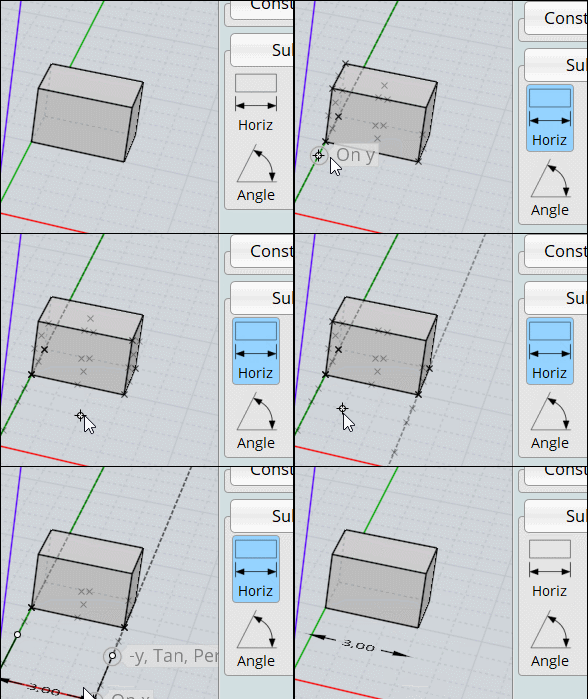
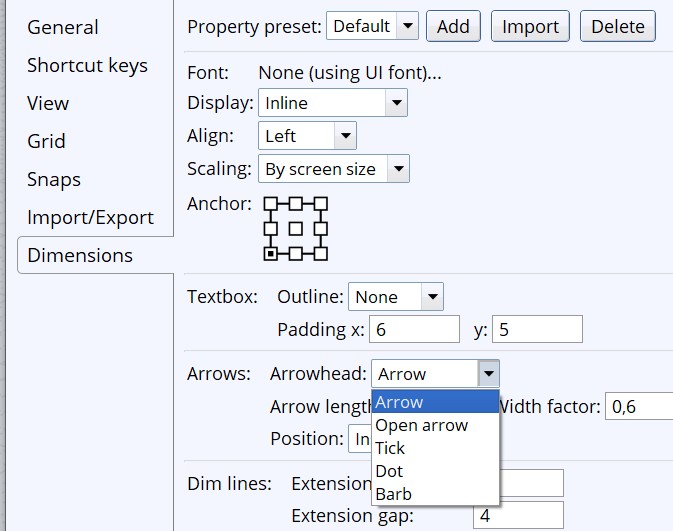
You have all variations of Arrows in the General Options / Dimension! ;)
(Bottom Right Line)
From: David (BLEND3D)
Thanks Michael, email on it's way :)
From: Reggy (FUSIONSCAPE)
Hi Michael,
I'm new to this forum, because I never had any problems. But I have lots of issues since the september beta which didn't occur using the januari version.
Here is a list that I have encountered so far. I'm working on a Macbook Pro 10.11.6
- Rebuild: returns a script error
- Array/Grid: returns a script error
- Network: : returns a script error
- Sweep: places copies on top of each other. Sometimes 7, sometimes 9 copies.
What is happening?
Reggy


Image Attachments:
Array.png
network.png
rebuild.png
Sweep.png
From: Mindset (IGNITER)
Thank you Pilou,
I was interested in an arrow that is NOT in the context of a dimension.
For instance, on the angular dimension... one can blank out the text, but still I don't see how how to suppress one of the arrow heads nor the dim lines.
Sometimes, one might want just a single headed arrow.
Perhaps I am missing the conclusion...?
BTW, thanks for all that you contribute on the forum.
From: Frenchy Pilou (PILOU)
For the moment you can only change by the Detail Button (Up right page corner )
but not that you want...
For that you want use the Dimension by Max Smirnov
http://moi3d.com/forum/index.php?webtag=MOI&msg=7403.133
You will can Separate anything! (that you can't do now with the native Dimension that you have used)
So erase Start, End arrows etc...
From: bemfarmer
So can the option for a null arrowhead be added by Michael, in addition to options for e.g. a barb or dot or open arrowhead...?
Either or both arrowheads being null?
Add option to dimAngle factory for not displayiing angle numbers?
New question: The result of the dimAngle looks line a drawn archery bow, with the string being two lines. Are the two lines needed,
or can there be an option to not show the two lines?
- Brian
The drawn bow seems to be one object, some type of object. It cannot be separated? Nor portions deleted?
From: stefano (LIGHTWAVE)
You can draw arrow call outs "leader" with the dimension tool and leave the text "blank"
[AFTER you draw the leader arrow and the text box appears just CLICK OK].
I used this earlier to label a tiny rebate that was less than 2mm to draw attention to the
Design detail for a fabricator..
Tip:
1. Try/consider using LEADER arrow and "abc" text separately. It seems really flexible!
You can also put more points than needed on the arrow part then later "show points"
to give even more flexibility on the arrow direction and placement.
UPDATE:
2. Create presets for different arrow types.
>> Options/Dimensions/Property Presets & "ADD"
Focus on the arrow section..and "ADD" preset.
Then when you draw leader arrows and RIGHT CLICK you can see the presets
and swap them about at a click.
I'm not sure this is it's full intended use but it's rather flexible. If you leave text
out and have extra control points shown then the 'arrow' is effectively totally separate
(and sizeable or pivotable in lots of directions). Text can be added at any time
through 'leader details' or via separate "abc" text tool.
Image Attachments:
leader+seperate+text.jpg
leader-arrow.jpg
manual-custom-arrows.jpg
From: Michael Gibson
Hi Reggy,
> - Rebuild: returns a script error
> - Array/Grid: returns a script error
> - Network: : returns a script error
> - Sweep: places copies on top of each other. Sometimes 7, sometimes 9 copies.
Hmmm, the script errors kind of look like you're missing a file.
If you right click on the app and choose "Show package contents", then go into the commands folder, there should be a file there named "WaitForDialogDone.js" . Is it missing?
Also by any chance did you happen to download it on a Windows machine and also unzipped it on a Windows machine before transferring it to the Mac? That can result in permission problems because the Mac does some special handling of .zip file decompression to maintain the original file permissions. So you need to unzip it on the Mac, not on any system.
I'd recommend to try deleting it and downloading it again, it kind of seems like your installation may be damaged somehow.
- Michael
From: bemfarmer
A quick search shows that some CAD programs use "Spline Leaders," and "Arc Leaders." The arc leader in Autocad had a slightly curved arrow.
First time to play with the Dim's. They are elegant and well thought out, likely representing lots of work. There is much to learn. Changing arrows, and options, and presets, is not understood...
- Brian
So a guess would be that dimensions represent a special kind of geometric object, not subject to many of MoI's commands?
From: bemfarmer
restore defaults does not seem to work for Options Dimensions, arrowhead or line lengths, etc...?
- Brian
When in the Dims section of Options, After hitting restore defaults button, does Current Section Only refer to the Dims section?
And Everything refer to all of the option setting tabs?
From: stefano (LIGHTWAVE)
Hi Brian, You should find the dimensions very easy and flexible
with presets, try this from Michael, it's very slightly edited:
Go to Options > Dimensions , create some settings for a 'preset'
and then when ready at the top of the window push “Add” to add in a new dimension property preset.
You could add in one preset that you want to use for horizontal dims and set it to have text height 12,
and then an additional one for radial dims and set it to have text height 6.
Then when you are in the horizontal dimension command, go to the command options in the upper right corner of the screen
and there is a “Preset” option there where you can tell it which preset to use. Set it to the one you added for linear dimensions.
Similarly in the DimRadius command, set it to use the preset that has the properties you want for radial dimensions.
Once you have that set up you should be able to create linear dimensions or radial dimensions and they will each start out with their own different properties.
The way the storage of the presets work is the “Default” preset is stored in your moi.ini file and so it will automatically be available in any new project. The other presets after Default are stored inside a .3dm project file so you can have different ones on a per-project basis. If you want those other presets to be available when you start up a brand new file then make a .3dm file that has them set up as you want and specify that file as the startup template under Options > General > Template file. Then when you start a new project it will go grab the presets from that file.
----------------------------------------
Stefano
From: Michael Gibson
Hi Brian, for the reset "everything" means all sections, otherwise it will reset only the stuff in the current active section.
And yes, it doesn't do anything for the Dimensions but I will tune that up. There is another way to reset it right now, if you delete the default property preset it will remake it with default settings.
- Michael
Show messages:
1-4
5-24
25-44
45-64
65-84
85-104
105-118

