From: Zooen
Hello Michael,
In the Options > General > Decimal Precision window, you can select seven decimal places.
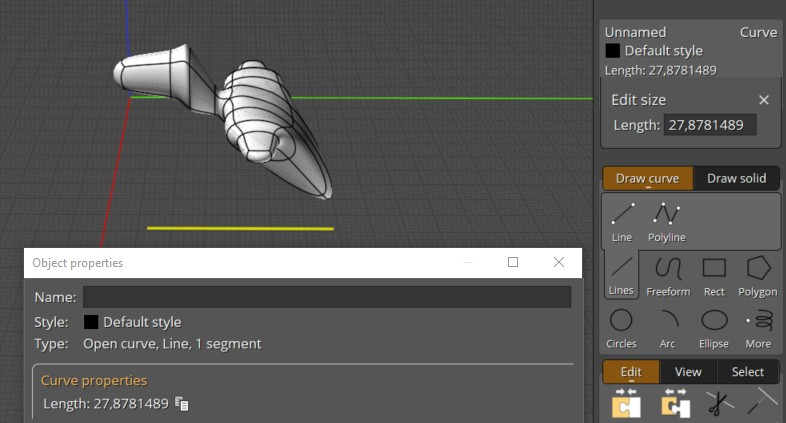
However, in several windows, I cannot see all seven decimal places (see attached images). Is this a problem with my interface settings? Or a setting in the me.ini file? Or something else? I’ve done some research, but I haven’t found a solution.
I have about twenty projects to complete involving a lot of 2D geometric figures with intersections, tangents, curve connections, etc. All of this needs to be done with great precision.
Well, I’m managing – precision is one of MoI3D’s great strengths – but it’s reassuring to see all the zeros at the end.
My source material consists of old books (1849), written in English and therefore in inches, and the figures have been deliberately distorted in the xy plane for publication purposes (to fit the book’s format). Furthermore, there are no dimensions.
I’m sure you’ll have some information to share with me.
Could you also clarify the ‘Activate distance’ and ‘Keep activate distance’ options? I couldn’t find them in the help section.
Image Attachments:
 Activate_distance_-_Keep_acitve_distance.png
Decimal_view_1.png
Decimal_view_2.png
Decimal_view_3.png
Activate_distance_-_Keep_acitve_distance.png
Decimal_view_1.png
Decimal_view_2.png
Decimal_view_3.png
From: Frenchy Pilou (PILOU)
i believe that you can see them on the Up right side corner and Detail window...
And inside the Bottom Line numeric boxes input ! (not shown here)
From: Michael Gibson
Hi Zooen, the UI isn't designed to fit the large number of characters like you show.
I would recommend using a setting of 5 decimal places instead of 7.
re:
> Could you also clarify the ‘Activate distance’ and ‘Keep activate distance’
> options? I couldn’t find them in the help section
The "Activate distance" is how close the mouse pointer needs to be to a straight snap line for the straight snap to be initially turned on.
After it has been turned on it will remain on if the mouse pointer is within the "Keep active distance" value.
- Michael
From: Zooen
Hi Michael,
That leaves me speechless.
In French: ‘Pantois’: Someone who is surprised and taken aback by an unexpected situation.
Why display 7 decimal places in a small window (where they appear correctly) yet not show them in full in other MoI3D windows? On my computer screen, it’s a matter of about 2 millimeters in visual terms to see the seventh zero in full.
By nature, I’m a perfectionist – perhaps too much of a perfectionist.
Image Attachments:
6.7_Decimals_01.png
6.7_Decimals_02.png
7_Decimals.png
From: Michael Gibson
Hi Zooen,
re:
> On my computer screen, it’s a matter of about 2 millimeters
> in visual terms to see the seventh zero in full.
That's only the case for a value of "0", if you also want to show it for other values such as "10" or "100" an additional 2mm is not enough space.
If you like you can test it by editing a line in the UI files - run notepad.exe with "Run as administrator",
Open the file C:\Program Files\MoI 5.0 beta Apr-27-2026\ui\moi.css
Find the rule which sets the default width for an input field , it starts at line 303 and looks like this:
code:
input, moi\:TextInput, moi\:NumericInput, moi\:DistanceInput, moi\:IntegerInput, moi\:UnsignedIntegerInput,
moi\:PointInput, moi\:CoordinateXYZInput, moi\:CoordinateDistanceInput, moi\:CoordinateAngleInput {
	border:1px solid $$INPUT_BORDER_COLOR$$;
	padding:$$INPUT_PADDING$$;
	color:inherit;
	background-color:$$INPUT_BACKGROUND_COLOR$$;

	display:inline-block;
	-webkit-box-sizing:border-box;
	-webkit-user-select:text;
	-webkit-user-drag:none;

	width:5em;
	/*allowdblclick:false;*/
	cursor:auto;
}
Edit the line in there that has width:5em; to width:7em;
Now the default width for those controls will be larger which does what you want in some places but messes up UI in other places where it needs to fit within a limited width such as the circle command now looks like this:

- Michael
Image Attachments:
CircleCommandWith7emWidth.png
From: Zooen
Thank you, Michael, as I’ve just made the change and I’m perfectly satisfied with it.

