From: Tim (TIM_HICKOX)
I have been too busy to look into the next version, but I will mention a couple of things that I hope will come; and one new feature. First I want buttons for 'rebuild' and 'merge'. I've typed those words thousands of times. Maybe others don't use those so often, but they are essential to me. Also, I would like to simplify naming objects. Instead of having to type in a name, over and over, I would like to just click on a listed name. Now for the new feature: I would like to be able to rig a path and a reference point and have the view follow that -- a very simple animation. Long ago, I used a program called MegaModel, that had this feature. I assume that this would be easy to do, because that program ran on DOS!
From: Jfs (PAQUICINNO)
Hi Tim, why don't you create a shortcut? you only have to type Merge or Rebuild in the command, and assign a letter.
Jfs
From: Michael Gibson
Hi Tim,
re:
> Also, I would like to simplify naming objects. Instead of having to type in a name, over and
> over, I would like to just click on a listed name.
You can get this in the v5 beta at
https://moi3d.com/beta.htm
When you click on a name in the scene browser a menu pops up, pick "Assign selection here":
- Michael
From: blowlamp
Michael. How does Move work in those options?
Thanks.
Martin.
From: Frenchy Pilou (PILOU)
I don't know what animation you want
but with r2d3 Elephant script you can animate anything along a path ; pathanim.nod
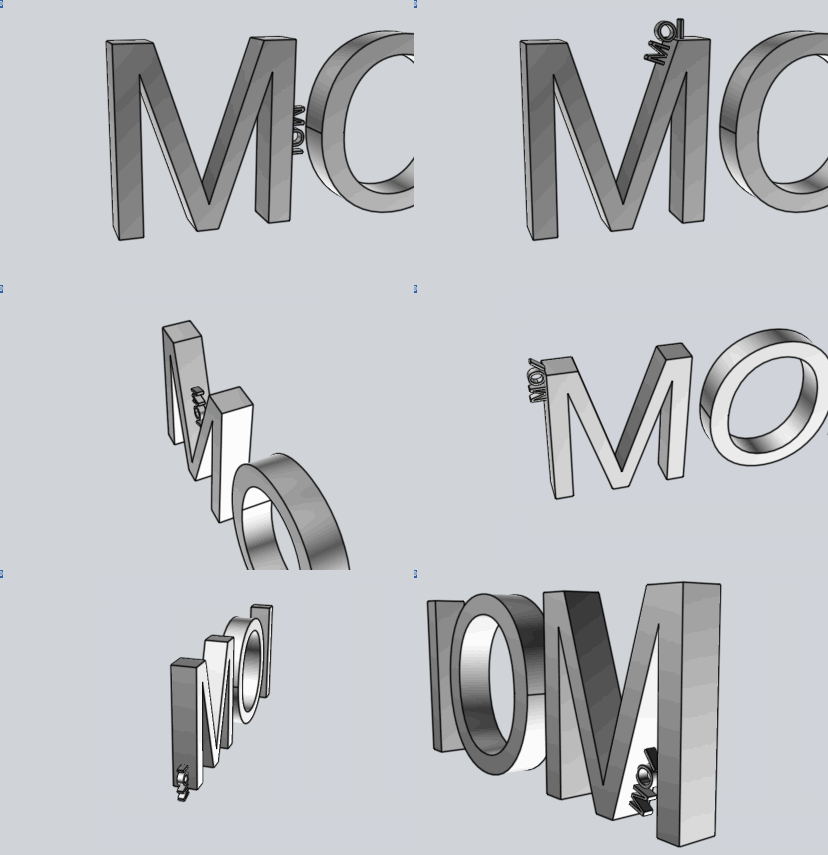
Somewhere on this page! :)
https://moiscript.weebly.com/elephant-systegraveme-nodal.html
Original :
https://moi3d.com/forum/index.php?webtag=MOI&msg=7777.878
From: Michael Gibson
Hi Martin,
re:
> Michael. How does Move work in those options?
Oh by the way there are shortcuts - Right click on the name will do "Assign selection here" without opening the menu, Ctrl+Left click will do rename and Shift+Left click will do Move.
Those 3 functions Rename, Move, Delete work directly on that scene browser item's objects without regard to selection.
So for example here renaming or deleting all unnamed objects without needing to set selection first as was previously needed:
So "Move" will wait for you to pick another item and then it's like drag and drop except better because you don't need to keep the mouse button down and try to control auto scroll behavior while dragging in a long list. You can just use mouse wheel, regular scroll bar and expand/collapse while you go to the target.
Move is primarily for putting things into or out of group hierarchies, currently moving a name tag onto another name tag doesn't do anything since those don't have parent/child hierarchies. Oh yeah in Styles you can use it to order the style list.
But on groups it's like this:
- Michael
From: Tim (TIM_HICKOX)
Sorry, I'm not into all the tricks that many of you know. I don't understand what you mean by 'assign a letter'. I'm not even sure what you mean by 'command line'; is that where I type in 'rebuild'?
From: Tim (TIM_HICKOX)
I don't know how to do that. I was just looking for something simple.
From: Michael Gibson
Hi Tim, to add in a shortcut key for the Rebuild command:
Open the Options dialog.
Click on the "Shortcut keys" section on the left-hand side.
Click on "Add" at the top.
A dialog will appear that says "Press shortcut key" - press the key you want to use for example the R key would be easy to remember for Rebuild. You can hold down Ctrl, Alt, or Shift keys in combination with a letter if you want.
Press OK and a new entry will be at the top of the list. There are 2 parts to each entry, "Key" and "Command". These make 2 columns in the list, Key is on the left and Command is on the right. You have just set the "Key" part, now you need to fill in the command part which has keyboard focus so you can now type in rebuild and push Enter.
You're done and you can close the Options dialog.
Now when you push the R key the Rebuild command will launch.
Looks like this:
- Michael
From: blowlamp
Hi Michael.
Thanks for explaining how the Move tool is used. I was trying to move one object into another and it wasn't working, but that's already covered by Assign selection here. ;-)
Also, I'm really appreciating the slow-paced explanatory videos you are making for questions such as mine. They help with the intricacies, such as showing that narrow band for sending an object to the 'parent' section in the list.
Thank you.
Martin.
From: Frenchy Pilou (PILOU)
< I was trying to move one object into another
Maybe this can interest you!
Call the Move function and then use the Helper Lines!
Can be used before the first click; after the firt click, before the last click of the fonction!
Leftt Click without release, release... a dashed line is drawn... etc....you can draw any number of lines!
These dashed lines will disapear after the last click of the function called (here Move)
If you want keep them there are some plugins for that...
Else there are some extra bonus in the Helper Lines themselves if you click the white little box : Move, re orient, Rotate, Divide, Project next point....
10 minuts of trainning is necessary (for the without release-release) but after you can't no longer do without it!
PS Of course valuable for any objects, curves, surfaces, volumes etc...!


